Wednesday, 30 December 2015

IoT Services - Introduction to Buddy Platform

Introduction

This article introduces us to the world of Internet of Things Services through a new service called Buddy Platform. We would learn what is Buddy, how to use Buddy and how Buddy can help us with the IoT projects we are building.

What is Internet of Things?

As we all have known and seen, Internet has helped us connect, communicate, entertain, earn, learn and share. Now the new buzzworld is to put small devices to connect with each other, share information and help us learn or manage our world. This mesh of devices connected with each other over the internet is called the Internet of things.
By having the ability to put the process, people, data and devices together, we have the ability to create the exponential responses to the exceptional challenges the businesses, individuals and countries face today. Hence, the need for Internet of Things has become more relevant than ever.

What are IoT Services?

In our previous articles, we learnt of different devices like Arduino, Netduino and Raspberry Pi and how to put them to work. Now once we have these devices programmed to read sensors or monitor processes, we will need to get the data transmitted from the device to a place where it can be used by us or other devices/processes.
To achieve this data transmission, we could either create our own webservices and interface with them or we can use some of the services called IoT Services that are already out there in the market and use them.
Examples of these services are:
  • Amazon webservices with AMZ Kinesis
  • Microsoft Azure with Intelligent Systems and Services
  • IFTTT – If This Then That
  • Buddy Services
  • Why do we need IoT Services
With more and more things in our daily life becoming smart or inter connected, we will need a single and simple interface to control/manage most of them at one place. However since each device has a particular problem to solve and is developed by a different developer or a company, each one of these are on their own platforms with their own interfaces.
Due to the resource constraints and lack of expertise, more and more developers are turning towards readymade services that can be used to interface with their devices. This gives them the ability to focus on their products more intensely without having to invest or worry about the infrastructure the device would need.
These services also provide them with the ability/flexibility to scale, secure and perform depending on the usage instantaneously. This also helps avoid unnecessary losses due to investments in infrastructure for products that might not meet the expectations of the market and may need to be pulled back or re-done from ground up.
These services serve the same purpose as above, i.e., provide the infrastructure to Transmit, Host, Secure, use and Analyze the data from the devices as a Service.
In our article today, we shall focus on one of these premium Internet of Things Services platform by name Buddy.

Buddy Platform

What is Buddy?

  • Buddy is one of the Backend services that can be used by developers right out of the box. These services are platform agnostic and can be interfaced with any platforms like Android, iOS,, Webapps, Raspberry Pi, Arduino and so on.
  • Buddy has APIs that can help us manage the devices that are connected to the services and also users if there are.
  • The APIs can push notifications to the mobile applications on Windows, Android or IoS.
  • The Buddy platform supports recoding metrics events.
  • The data from the apps and devices are sent as Telemetry and stored on the Buddy platform.
  • Buddy also supports Deep Analytics which can help us understand our customers better.
  • The Business intelligence applications of company could easily be interfaced with the data on Buddy platform.
  • Buddy is scalable depending on the devices or applications being connected.

Software Development Kits for Buddy Platform

As we saw earlier, Buddy supports several platforms. The support is provided through the SDKs which are nothing but thin wrappers over the REST service to help take care of the complicated tasks such as request and response management, authentication and so on. Buddy has four SDKs for download as listed below:
  • .NET SDK
  • iOS SDK
  • Android SDK
  • JavaScript

.NET SDK

The .NET SDK is used for interfacing with the buddy platform from a .NET application, Windows phone application, Netduino App, Xamarin apps. And the SDK can be installed from the NuGet manager on Visual Studio.
The Software development kit helps us with the below tasks:
  • Creating requests for the Buddy RESP API calls
  • Managing authentication
  • Parsing the received response from the API calls
  • Storing and managing credentials

Prerequisites

This release supports development with Visual Studio 2012 & 2013, and supports the following platforms: .NET 4.5, Windows Phone 8.x, Windows 8.x, Xamarin Android, Xamarin iOS.
Below are the steps to install the SDK using the NuGet on the Visual Studio.
  • Open Visual Studio
  • Create a new project
  • Search for Nuget Package manager
  • Search for Buddy on the nugget Online search
  • Click install
Below is a GIF with the above steps:

Using the .NET SDK

To use the SDK in our .NET code, we will need to initialize the SDK by using the init method.
The init method requires the App ID and App Key for your App on the Buddy Platform. Let’s start by creating an App on the platform called CodeProject_Sample app.
Below are the steps to create a new app and get the App Key and ID from the dashboard.
Now let’s initiate the SDK on our .NET code:
using System;
using System.Collections.Generic;
using System.Linq;
using System.Text;
using System.Threading.Tasks;
using BuddySDK;

namespace ConsoleApplication4
{
    class Program
    {
        static void Main(string[] args)
        {
            Buddy.Init("jdjjjasdj.fGgbvKNcKsFv", 
            "111112211-5D48-4BFD-A36A-A975D0C34F20");
        }
    }
}

Register a Device

To register a device on the Buddy platform App, we can use the register device method. This method will register and authenticate the device with the buddy platform app.
Buddy.registerDevice("bbbbbc.fGgbvKNcKsFv",
"FB664210-5D48-4BFD-A36A-A975D0C34F20", function(error, res) {
       Buddy.recordMetricEvent("app_started");

  Buddy.get("/users", function(error_2, res_2) {
      var myUsers = res_2.result;
  });
});

var deviceToken = null;

$.ajax( {
  type: 'POST',
  url: "https://api.buddyplatform.com/devices",
  processData: false,
  data: JSON.stringify({appId:myAppId, appKey:myAppKey, platform:"REST"}),
  headers: {"Content-Type":'application/json'},
  success: function(data) {
              if (data.success && data.result) {
                     // save the token
                     deviceToken = data.result.accessToken;
              }

        // get the list of users
        $.ajax( {
          type: 'GET',
          url: "https://api.buddyplatform.com/users",
          headers: {
                           "Content-Type":"application/json",
                "Authorization" : "Buddy " + deviceToken
          },
          success: function(data) {
                if (data.success && data.result) {
                    // save the token
                    var users = data.result.pageResults;
                }
          });
  });
})

Telemetry

As more and more devices from our everyday world are enabled to connect to the internet, the data that these devices can generate is huge and help in many ways for the businesses. Just a simple example of this is an internet enabled car.
Once a car is sold and is internet enabled, it can send data back to the manufacturer which can be used in many purposes, the data can be anything like below:
  • How much is the car being used on a daily basis
  • How is the car being maintained
  • How is the car performing based on geography, climate, usage and so on
  • Which dashboard features are being used most of the times
  • Which features are never being used or used very rarely
  • How frequently is the car being serviced, and so on
Having this data from our products helps make decisions and changes that will help us provide the best products and service to our customers.
Buddy helps us capture this data by using the Buddy Telemetry.

Configuring Telemetry

Before collecting the data, we will need to let Buddy know a little bit about the data that we would be sending so Buddy would know how to handle the same. This part is called the Configuration of the Telemetry.
The configuration is sent usually once before the data is sent and the configuration can be overwritten any number of times. I prefer sending the config when I initialize the app and after that only send the data. Below is a sample configuration.
{
  Car: {
    VIN: ‘234324234234324’,
     Make: ‘2012’,
      Model: ‘XXXX’
  },
  ssn: '111-11-1111',
  name: ‘Mr.XXX YYY’,,
Coutry: ‘USA’,
State: ‘WA’,
City: ‘Seattle’,
GPS:   ’12.12 12.12’,
MPG: 23,
}

Buddy.put('/telemetry/carconfig',
          {filterKeys:[car.VIN','ssn',’name’],
           metrics:{State:' State',City:’ City’, GPS:'GPS', Mileage:’MPG’}});
Once the configuration is complete, we will need to send the actual data as below:
// ...later, when data is ready to send.
var data = getSomeData();
Buddy.post('/telemetry/myconfig',{data:data});

filterKeys

FilterKeys is used to exclude customer sensitive data from being stored, in the above example I am filtering out the SSN, the Name and the Vehicle Identification Number [VIN].

Storing and Retrieving Media and Files

Store a picture on Buddy

Just like storing data, we can store a picture on the buddy platform using the APIs. It always wise to limit picture size so that the time to upload and retrieve would be reduced. There are libraries available to resize the image before uploading to buddy platform.
Below is a code snippet we can use on the JavaScript to upload a file from the client side.
var options = {

            readPermissions: "User",
            writePermissions: "User",
            permissions: "App",
data: "{binary picture data}",
            location: "22.1, -678.21",
            caption: "Sample picture for Codeproject article!",
            tag: "samples",
            watermark: "CPCPCPCPCP"
};

Buddy.post('/pictures',
                        options,
                        function(err, result) {

                                    if(err)
                                                return err;
                        }
            );
Fielddata
Required?Required
DescriptionThe file to be uploaded in the Binary format
  
Fieldlocation
Required?Optional
DescriptionLatitude and longitude of the location, usually the Geolocation of the picture taken
  
Fieldcaption
Required?Optional
DescriptionAny text as caption for the picture
  
Fieldtag
Required?Optional
DescriptionString value used as a tag for the picture, usually used to group pictures together
  
Fieldwatermark
Required?Optional
DescriptionString value that will be overlayed as watermark by Buddy
  
FieldreadPermissions
Required?Optional
DescriptionValues can be either User or App, meaning either only user who created can view it or the App code can access it as well
  
FieldwritePermissions
Required?Optional
DescriptionValues can be either User or App, meaning either only user who created can modify it or the App code can modify it as well
  
Fieldpermissions
Required?Optional
DescriptionValues can be either User or App, meaning either only user who created can view or modify it or the App code can access it and modify it as well
The same code written for a .NET app would look like below:
BuddyFile data = new BuddyFile(myFile.AsStream(), "My File Name", fileType);
BuddyGeoLocation location = new BuddyGeoLocation(47.1, -122.3);

var options = new {
                                    readPermissions= "User",
            writePermissions= "User",
            permissions= "App",
data= data_variable,
            location= "22.1, -678.21",
            caption= "Sample picture for Codeproject article!",
            tag= "samples",
            watermark= "CPCPCPCPCP"
                  };

var result = await Buddy.PostAsync<Picture>("/pictures", options); 
These are some basic APIs on the service and we shall look more into other APIs through examples in our next article.

(Stage 2 ) Getting started with Spark Core

Introduction

The aim of this article is to highlight how easy it is for any programmer to step into the world of lot and hardware engineering through an uncomplicated out of the box microcontroller known as the Spark core.
Often novice programmers like myself do not make the leap from software engineering to hardware engineering deu to the steep setup process of Microcontrollers and associated costs of making the devices internet ready.
Unlike the traditional Arduino Uno which requires additional hardware modules such as wifi shields to connect to the internet ,the sparkcore has an embeded wifi chip which makes it an innovative microcontroller that needs to be Highlighted as it is Internet ready out of the box./p>
This article will simply explain how to setup and connect the Spark Microcontroller to the internet and is meant for beginners. It is intended to make the activation ,setup configuration and use as seemless as possible in in conjunction with the Android platform .
This artical within the scope of stage 2 connectivity will Outline :
  1. Specifications of the Spark microcontroller
  2. Seemless activation and setup of the Spark microcontroller using wifi
  3. How to flash the spark core via its web Ide , using the Arduino coding syntax.
We apologise in advanced to experienced experts that may be expecting Cli and additional tinkering of the Sparkcore in comparison with arduino ,but we write this article to encourage simplicity and ease of use and connectivity for any one and everyone.

Back Ground on Internet of Things

In a nutshell The Internet of things is a innovative revolution that allows one to connect embeded devices to the internet :
  1. Interface virtual code, with numerous physical hardware that have the capacity to share data
  2. Execute remote commands
  3. Deliver output through a networked environment via the internet using Micro processors and controllers.
  4. Create Wearable technology
In the fields of :
  1. Information and Technology
  2. Neural network development
  3. Data sampling
  4. Education
  5. Science
  6. Medicine
  7. Sociology Etc

What is the SPark Core ?

The spark core is a versatile (802.11 b/g) wifi enabled ARM 32-bit Cortex micro controller available for $39.00.
Featuring USART,SPI and I2C interfaces.
An ARM 32-bit Cortex-M3 CPU with a 72Mhz operating frequency.
128KB of Flash memory for firmware storage and 20KB of SRAM.
which you can use to connect Digital and Analog hardware Via 8 Digital and 8 Analog GPIO pins.

Examples of such hardware include:
  • Sensors
  • Switchers
  • Motors
  • actuators
  • buzzers
  • Leds
  • speakers
  • Potentio meters
  • and other shields too.
 schemetics

Manufacturers Device Specifications

Programming Language Syntax

  • You can program the core using Arduino, C/C++ or even ARM assembly.

Spark Core

  • 8 digital I/O pins, 8 analog I/O pins
  • 8 PWM pins; UART (Serial), SPI, I2C, and JTAG peripherals available
  • Programmed wirelessly (through Spark Cloud), via USB or JTAG
  • 3.3V DC supply voltage (on board power regulator); can be powered by USB Micro
  • 100mA typical current consumption; 300mA peak consumption (during transmit events)
  • 2MB of external flash; EEPROM supplied by CC3000

Microcontroller

  • STM32F103 microcontroller
  • ARM Cortex M3 architecture
  • 32-bit 72Mhz processor
  • 128KB of Flash, 20KB of RAM

Wi-Fi module

  • Texas Instruments SimpleLink CC3000
  • 802.11b/g
  • Range of 100-300 feet
schemetics

Getting started Connecting and Configuring Spark Core Microcontoller over WIFI

SUDO STEPS

  1. Plug the included USB cable into the Spark Core and your computer. The Core should start blinking blue.
  2. Download and Install the Spark core Android App on your android phone or tablet fromhttps://play.google.com/store/apps/details?id=io.spark.core.android
  3. Register your email address and Device on the Spark cloud via Adroid app.
  4. Access the Web IDE https://www.spark.io/login and CODE your First instruction set in arduino syntax in the web ide.
  5. Connect sensors to Analog and Digital pins or to bread board.
  6. Flash your devices micro controller via the web ide with firmware that created in step 4 and you are good to go.
  7. You can use the Spark io android app in step 2 that you downloaded to remotely controll each pins on and off state and read and write parameters.
  8. Very simple

Step 1: Power the Core

Plug the included USB cable into the Spark Core and your computer.
The Core should start blinking blue!
If it doesnt blink blue ,press and hold the mode button until the light turns blue("The button on the left") Now put your spark core device aside leaving it still connected to the USB.
schemetics

Step 2: Install the Android App

If you have an Android tablet or phone install the Spark core companion APP from google play.
Fill in your email address and password and click register,It should take 10-30 seconds to go to the next screen
schemetics
In the SSID field type in your Home network SSID That you use to connect to the Internet with and its Password and click connect. Please Ensure the correct credentials have been entered
schemetics
Now Focus your attention to the led light on the spark Core It should go through a sequence of flashes.
Remember when you first plugged in the USB cable and the light turned blue,that was when it began listening for wifi credentials.
What the color of light and its blink speed means:

Step 4 :Loging into the Web Ide !

  1. Blinking blue: Listening for Wi-Fi credentials
  2. Solid blue: Getting Wi-Fi info from app
  3. Blinking green: Connecting to the Wi-Fi network
  4. Blinking cyan: Connecting to the Spark Cloud
  5. Blinking magenta: Updating to the newest firmware
  6. Breathing cyan: Connected! (slow light pulse)
If all goes well,your device led light should be breathing cyan and your android app should present you with the screen below
The Spark app should now be on the Tinker screen!
By default the embeded Led light on your spark device is connected to Pin D7 so let us test to see if the spark device is indeed connected to the internet and whether it can receive remote commands.

Lets begin our first test !

  1. Tap D7 then tap digitalWrite in the popup. Now when you tap the D7 circle the tiny blue LED on your spark microcontroller should turn on! In the screen shot below Digital pin 0 has been selected indicated by the green circle surrounding D0. All the other pins are greyed out indicating you have not selected them.schemetics
    Congratulations Your device is now Operational!
  • Simply Navigate to: https://www.spark.io/loginschemetics
  • Login with your email address and password.
  • Once logged in you should see the following screen
  • Type in your arduino code and than click on the flash button to flash your Spark Micro controller over the internet.
  • Its that easy, At this point i would like to let you know that i reside on a small island in the middle of the pacific ocean,we dont have access to much electronics so for the purpouse of this article i will just write a loop that flashes the led connected by default pin D7.
Writing flashable code in the web IDE in arduino syntax
// Program to blink original embeded LED connected to pin D7


// We name pin D7 as defaultled led
int defaultled = D7;


// This routine runs only once upon reset
void setup()
{
  // Initialize D7 pin as output
  pinMode(defaultled, OUTPUT);
  
}

// This routine loops forever
void loop()
{
  digitalWrite(defaultled, HIGH);   // Turn ON the LED
  delay(2000);               // Wait for 2000mS = 2 second
  digitalWrite(defaultled, LOW);    // Turn OFF the LED
  delay(1000);               // Wait for 1 second
   digitalWrite(defaultled, HIGH);   // Turn ON the LED
  delay(500);               // Wait for 500mS = 1/2 a second
  digitalWrite(defaultled, LOW);    // Turn OFF the LED
  delay(1000);               // Wait for 1 second
}
Once you have finished writing your code in the web IDE click on the flash icon to upload your insrtuction set
schemetics
Lets look at another example this one is provided by spark.io
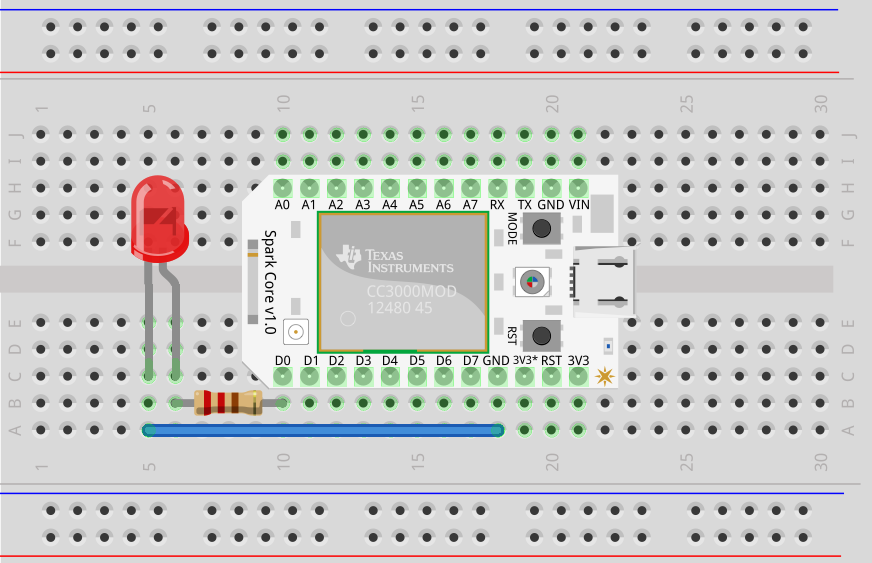
// Program to blink a  LED connected via bred board to pin D0


// We name pin D0 as myled
int myled = D0;


// This routine runs only once upon reset
void setup()
{
  // Initialize D0 pin as output
  pinMode(myled, OUTPUT);
  
}

// This routine loops forever
void loop()
{
  digitalWrite(myled, HIGH);   // Turn ON the LED
  delay(2000);               // Wait for 2000mS = 2 second
  digitalWrite(myled, LOW);    // Turn OFF the LED
  delay(1000);               // Wait for 1 second
   digitalWrite(myled, HIGH);   // Turn ON the LED
  delay(500);               // Wait for 500mS = 1/2 a second
  digitalWrite(myled, LOW);    // Turn OFF the LED
  delay(1000);               // Wait for 1 second
}
schemetics
Once you have finished writing your code in the web IDE click on the flash icon to upload your insrtuction set

Important points to note

Windows Device drivers(optional)

Baudrate: 9600
Data Bits: 8
Parity: none
Stop Bits: 1

Power supply

You can connect an external power supply Via the V in pin that can range from 3.6V to 6.0V DC but its recommended to power the Core via the USB port or usa a 3.6V LiPo battery.

PINS AND I/O

The board has a total of 18 IO pins that operate at 3.3V. 8 analog pins labled A0,A1,A2,A3,A4,A5,A6,A7 on the left hand side of the board and has 8 Digital pins labled D0,D1,D2,D3,D4,D5,D6,D7 on the Right hand side of the board The pins labeled TX and RX are preset to serial.

Analog Inputs

Pins A0 to A7 can be set up as analog inputs and can measure voltages of upto 3.3V The pins can be read using analogRead() function and it will return a 12bit value.

Conclusion

Thank you very much for reading this article on how to setup development environment and flash your first code to the spark core intended for people who are new to coding and engineering.

Writing Software for a Variety of IoT Devices Using the Yocto Project

Introduction

The internet-of-things is here, but it is a very different paradigm than what most companies are used to. For decades, software development companies have written software that for the most part was capable of running on the majority of computing devices used by their customers. The problem with the Internet of Things (IoT) paradigm is how do you leverage your existing code to target a variety of devices with very different hardware requirements. For example, a home automation company may want to have a variety of sensors and IoT devices that feed into the overall control of the system. The hardware requirements for a device to turn on and off a light are very different than a device which performs facial recognition. Typically the company would need to hire embedded software developers to write custom software for each device. This results in higher engineering costs and extended time to market for products.
Additionally many developers have struggled in balancing the various dependency requirements for a software framework. For example, you may download an image for a Raspberry Pi device that allows you to run Linux, but later on you find out the kernel headers aren't included in the image, or the version of the kernel or libc library included is not the version your software requires. It can be difficult to line up all the dependent versions for your system when you are dependent on a 3rd party for your base Linux distribution images.
There have been a lot of technologies that have come out recently that have mitigated these risks by giving developers the ability to maintain a consistent operating system across a variety of very different hardware configurations. One of these technologies that we will address in this article is the Yocto Project.
"The Yocto project is an open source collaboration project that provides templates, tools and methods to help you create custom Linux-based systems for embedded products regardless of the hardware architecture" -www.yoctoproject.org
This means we can build our own custom Linux distribution that contains all the libraries and dependencies we require for our software, but is consistent across very different hardware devices. Initially this may sound a lot more complicated, we now have a consistent operating system baseline, but we had to build it ourselves.  The Yocto Project uses Poky as a build system. It leverages off of OpenEmbedded (OE) and BitBake to divide the operating system up into recipes. These recipes are then combined into layers. A board support package (BSP) can then be used to provide Poky with the required hardware information that the other layers build upon. You can switch out the BSP to target very different devices while maintaining the other layers. You can then define a recipe that includes all the layers and recipes you need for your custom Linux system. This enables you to have the same kernel version, library versions, and dependencies across very different hardware platforms.
Don't worry; it is much easier than it sounds.

Background

The purpose of this article is to demonstrate how to use the Yocto Project's tools to create a custom Linux operating system that is consistent across multiple hardware platforms. This will give us a baseline framework for developing an example software application targeting very different IoT devices. The development boards chosen are all made by different manufacturers, have different purposes, and different processors. Because of their differences, I thought they would provide a good example on how easily the Yocto Project can be used to develop the same Linux operating system for very different devices. The following development boards were chosen (I will be hopefully adding to this list later as well):
  • Raspberry Pi - This is one of the most popular development boards out there. I decided to use it because… hey… we all have one lying around. The SoC on the board is a Broadcom BCM2835 containing an ARM1176JZFS core. It also has a built in Videocore 4 GPU capable of Blu-ray quality playback (using H.264) at 40MBits/s. The GPU can also be used to write custom OpenGL ES2.0 or OpenVG applications. This device would represent a more capable IoT device that is used to drive a display or stream audio/video.
  • Beagleboard Rev. C4 - This board uses a Texas Instruments OMAP3530 SoC. The SoC contains an ARM Cortex-A8 core, TMS320C64x+ DSP core, and a PowerVR SGX GPU. It can be used in video processing applications. It is an older development board and newer versions of this platform have been developed (BeagleBone-xM, BeagleBone), but it was chosen because it has a different boot process than the other examples, is known to be finicky in its boot loader, and has been the source of a lot of frustration for me in the past in getting all the software dependencies to line up on custom-built or provided images. It is a good example of how much easier the Yocto Project tools are to use than past solutions.
  • MicroZed - This board uses a Xilinx Zynq SoC containing Dual ARM Cortex-A9 processors. It does not have any built in graphic cores, but does have built in FPGA logic. This allows very custom hardware designs to be developed and added to the chip. For example, if your IoT device needed to perform some custom DSP algorithms for filtering of a sensor or even performing high end DSP algorithms such as facial recognition or object detection, that logic can be synthesized into the logic in the FPGA portion. I thought this would be a good example of a more basic ARM system (no video cores) and also one capable of very custom hardware interaction.
The purpose of this article is to show the ease in generating custom Linux development environments for a variety of hardware platforms. As such I won't spend a lot of time on the development board setups. It is assumed that if a reader has one of these boards and is attempting to run the custom built image on them that they would be familiar with the necessary power hookups, board jumper configurations, etc. to do so. Also note that these development boards all have readily available Board Support Packages (BSPs) for Yocto's Poky build environment. Because the Beagleboard is older than the other two, a BSP targeting the current Poky version is not available; however, I did find that the current Texas Instrument's BSP layer will still work for the older board. If there is not an available BSP for your board or processor provided on Yocto's Project Website (very few can be browsed to) you can try googling "Yocto <board or processor name> BSP" to see if a community or 3rd party one has been developed. If still no luck you can try customizing an available BSP that has the same or similar SoC or ARM core. The creation of a new BSP is not part of this project.

Application Development

Using the Yocto Project we will be able to create a custom Linux environment, but I also wanted to show how easy it is to get a runtime environment setup for developing, debugging, and running applications that have been developed with a high level programming language. The ability to re-use code that has been developed using C#, Ruby, Perl, Java, etc. would be valuable to a developer that may have libraries already written in that language. It also absolves the developer from having to be familiar with lower level C++ and C coding on an embedded system. If you know nothing about how an ARM processor, cross-compilers, or embedded Linux works, you can still develop software for your IoT device.
As part of this tutorial, I will demonstrate how to include Mono (a cross platform .NET runtime environment) in the Linux environment so that our operating system is ready to run our C# source code and libraries on each of the development boards. In later articles I will demonstrate how to develop applications to target the IoT devices using high level development environments such as Visual Studio and Xamarin Studio (MonoDevelop) running on an external PC. For this tutorial; however, we will focus on getting the operating system and runtime environment up and running on the boards. We will also do a quick validation of the system to ensure the Mono runtime is functioning properly.

Development Board Tutorials

I decided to break the board tutorials out into separate articles. This article was getting lengthy and I thought each individual tutorial might be a good reference for developers seeking to establish a Mono runtime on their board without having to wade through additional board tutorials. I also wanted to add a few tutorials for boards I have laying around. It would be easier to add a link later than attempt to add in an entire section for an additional tutorial.
Much of the tutorials are the same for the different boards and can be catered for boards or processors not covered here. The Yocto tools also allow you to target QEMU which is a hardware emulation environment. Even if you don't have a development board you should be able to run through these tutorials (with some slight tweaking) using QEMU. This is also a nice advantage of using Yocto. Not only do you get a consistent custom Linux baseline across different hardware configurations, you also get a standardized way of creating and building software for those various embedded systems. You can also begin with QEMU developing software prior to actually having the hardware in place.
Here are links to the individual board tutorial articles:
So now we have a variety of hardware devices that have relatively the same Operating System and software framework environment. What's next? We now have the ability to begin to develop communication software that will allow the very different boards to communicate with each other or a Web service. After all, isn't that the point of IoT devices is to be able to send out the drones to capture information and process that information in the cloud. In subsequent tutorials, I will demonstrate how easily this can be done.

Yocto Advantages and Disadvantages

One concern you may have after going through the tutorials is it almost seems too good to be true. Why isn't everyone using this already? Fortunately, the development boards chosen above have BSPs readily available. If a BSP was not available for a specific processor or board, it would take some additional expertise for a developer to modify one or develop one from scratch. This risk is a valid concern; however, the Yocto project has a lot of big name participants and it continues to grow its list every day. For example, Intel, AMD, Texas Instruments, Dell, Broadcom, and LG are all companies that are actively involved as a participant in the project. Those are just a few of the official participants. The Mono and Raspberry Pi metadata layers used in the tutorials are community maintained. As Yocto becomes more widely used, more board support packages and layers will be supported. In the end, even if the processor you are targeting does not have any BSPs that are similar, the Yocto project has a large amount of documentation to get you started with your own recipes and BSPs.
We now have a custom Linux Baseline with the same library versions and Linux kernel across very different development boards. Notice that although the build process was relatively the same for the different boards, the output files that are used to boot the boards are very different. The Raspberry Pi generated an SD card image that we could write directly to an SD card. The Beagleboard required the creation of additional files. We also had to partition the SD card and copy the files over in a specific order. The bad news is that using Yocto does not always mean that we won't have to perform additional customization steps for our different pieces of hardware. (That is why the README files on the BSP websites are so important.) The good news is that it has proved dynamic enough to accommodate very different boot methods from different chip vendors.

Conclusion

In the end, the Yocto Project has been an excellent tool for providing us the capabilities to produce a custom Linux distribution across various embedded hardware configuration. It is also an excellent tool for developing IoT device applications.  Here are some of the advantages of its use:
  1. Companies and developers can now develop a variety of IoT devices with very different hardware requirements, but leverage off the same software and libraries.
  2. Shorter time to market for new IoT devices by re-using source code and software developed for other devices.
  3. High level source code such as C# can be re-used on the Web server, Desktop Application, and IoT device.
  4. If BSP packages are available for the target processor, then a developer with no prior experience in embedded applications can begin developing software for that device.
  5. Consistent build process for tracking and building images for a variety of IoT devices.

What should you required to learn machine learning

  To learn machine learning, you will need to acquire a combination of technical skills and domain knowledge. Here are some of the things yo...